
Reversing Images and Video in Meetn
Showing Your Best Side
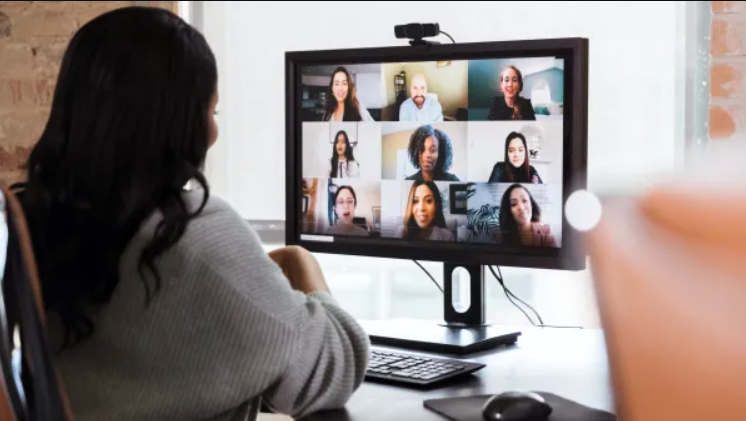
In online meetings and webinars, mirroring your own video feed can make your view feel more natural and familiar – like looking in a mirror. This can help users adjust their position and appearance more easily. While other participants see the non-mirrored, correct view, this setting ensures the user sees…
There are many reasons you may need to enable or disable mirrored self-view in Meetn, or reverse images you are uploading into our platform. Read on to learn more about how images and videos are handled in Meetn Video Conferencing.
Room Background Image
The Room Background Image acts as a wallpaper for your events. Your background image will remain in the orientation it was uploaded.
- You can upload a Room Background Image under Menu > Room Settings.
- The image cannot be flipped or reversed within the Meetn platform.
- To display text correctly, use an external image editor (such as MS Paint, Canva, LunaPic, or Photoshop) to create a reversed version of your image before uploading it.
- (Tip: I personally use MS Paint—it’s quick and easy!)
Virtual Video Background
You can upload a Virtual Background Image to appear behind you when sharing live video in a Meetn.
- A Virtual Background Image replaces your real-world surroundings during a Meetn.
- Upload your virtual background by going to Menu > Audio Video Settings > Virtual Backgrounds > Custom Image.
- To flip or mirror the image (and your camera view), toggle Mirror Self-View under Audio Video Settings.
- This setting reverses both your video and the background image in your own view.
Real-World Background
Depending on your camera and audio-video settings, your Real-World Background may appear reversed in Meetn.
- If you have text, signs, or posters behind you, these may appear reversed when Mirror Self-View is enabled.
- This setting reverses both your video and the background image in your own view.
- You can turn off Mirror Self-View to display the text correctly to yourself (it always appears correct to others).
- Some external cameras or mobile devices may mirror the video by default.
- To minimize distractions in these cases, you can enable Menu > Audio Video Settings > Virtual Backgrounds > Blur Background.
NOTE: As mentioned above, keep in mind that mirroring your view only impacts the view for you. Your attendees will always see the original camera perspective.
Have Questions?
Ready to turn your virtual meetings into marketing machines? Start scheduling smarter with Smart Office Solutions. And check out our other articles for more advice on specific industries and use cases.